

Tours
The Tours tab in Monitoring: tour list, tour status and map interaction.
The Tours tab shows a list of all tours for the selected date.
List Contents
The following information is displayed per tour:
- Vehicle photo (or a vehicle icon) with status dot
- Tour name
- Warning icon if a delivery point failed or was completed with a warning (Something happened with tour) or if there are special events (Has special events)
- Tour status as a badge with text (see Tour Status Icons)
- Vehicle with license plate, trailer and driver
- Speciality icons (at most eight)
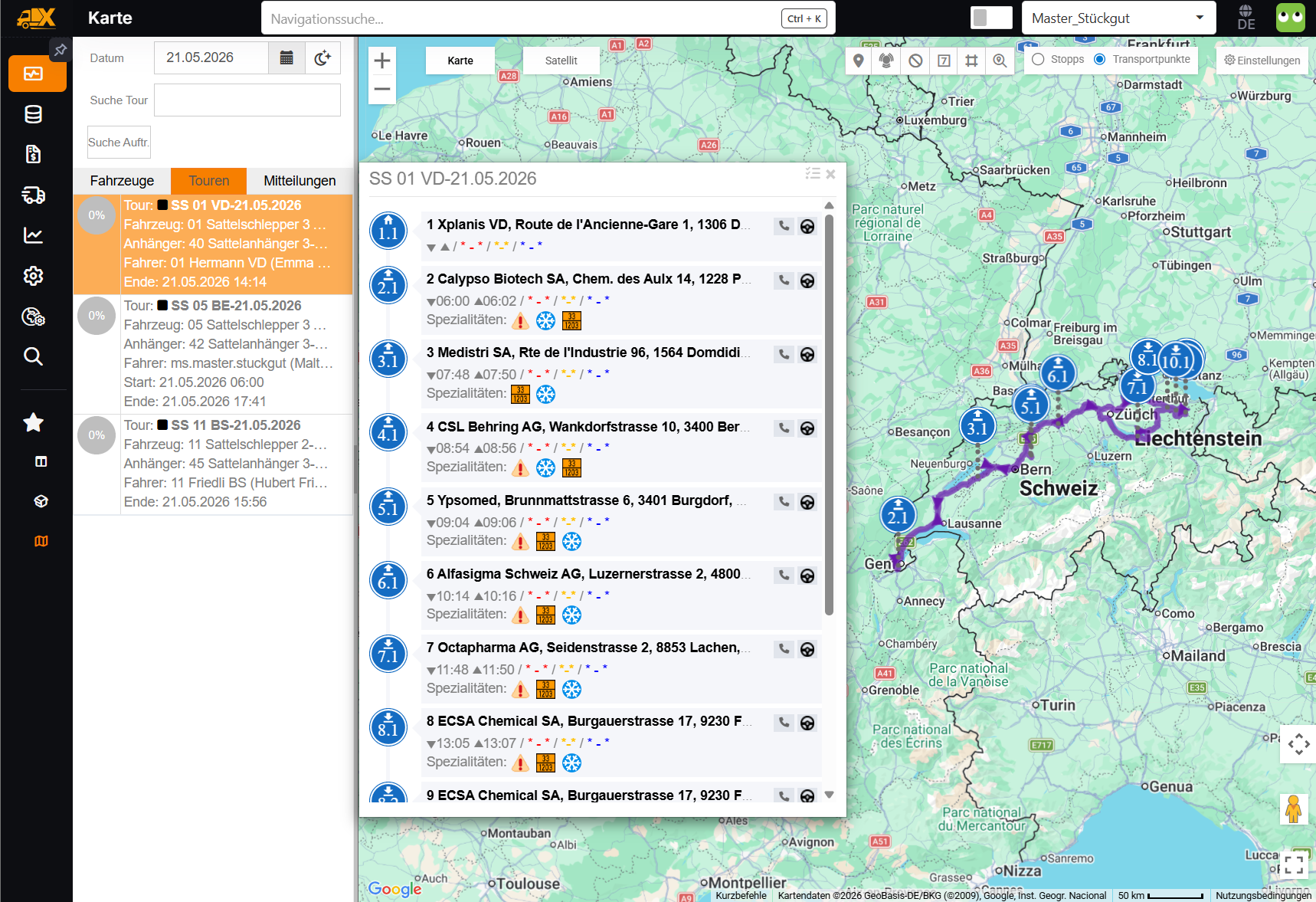
Selecting a Tour
Clicking a row selects the tour. The map centres on the tour route (unless Fix zoom is switched on) and highlights all tour points (stops, shipment points).
Tour Status Icons
The status is shown as a badge with text in the tour row and in the tour detail panel. An overview of the icons and their meaning:
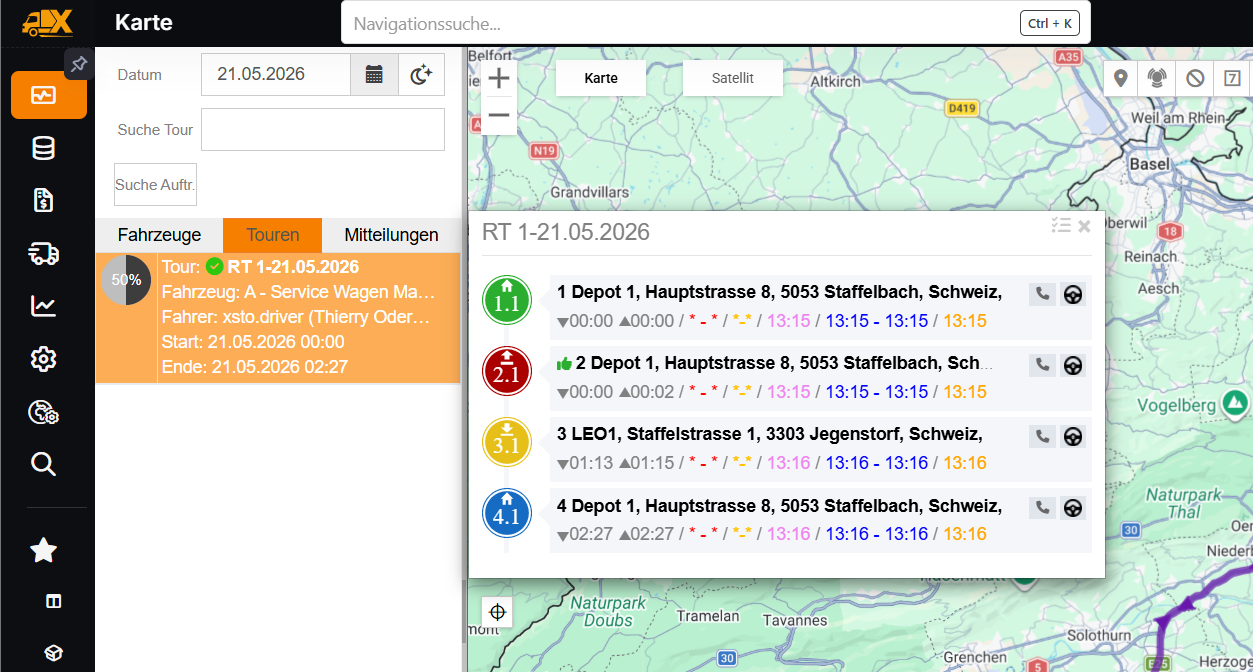
| Status | Meaning |
|---|---|
| In progress | The tour is being executed |
| Paused | The tour is paused |
| Completed | The tour is completed |
| Incompletely finished | The tour was completed but not fully executed |
| Not started | The tour has not been started yet |
Tour Details
Clicking a tour in the list opens the tour detail panel next to the sidebar. It shows the key details of the tour, the list of its stops or transport points and the actions for the tour. Use the X in the header to clear the selection.
Header and Key Figures
- Header: warning icon (if any), tour name, tour status and X to close.
- Below: vehicle, trailer and driver.
- Key figures: Stops or Transport points as done/total, and Distance (km).
The list in the panel follows the mode selected on the map: either the Stops or the Transport points of the tour are listed.
Actions
| Action | Description |
|---|---|
| Message | Opens the chat with the tour's driver already mentioned. Only visible if a driver is assigned to the tour and your role is allowed to send messages. |
| Tour check | Opens the Tour check dialog (see Tour Check). |
| Driving time | Opens the driving time dialog. Only visible if a driver is assigned to the tour. |
| Trace | Shows or hides the recorded GPS trace of the tour on the map. |
| Center | Fits the map view to the whole tour. |
| Checklists | Opens the checklists panel of the tour (see Checklists). |
| Mark as reviewed / Review completed | Appears if the tour contains shipments that can be reviewed. After a confirmation, the whole tour is marked as reviewed. Roles with read-only rights see the button disabled. See also Shipment Review. |
| Edit stop | Only for Admin and Superadmin, and only if the tour is released, in progress or completed. The button becomes active as soon as a stop is selected and opens the editing of all transport points of this stop. |
Transport Point Details
The details of a transport point appear in a separate area between the tour detail panel and the map. The width of the area can be adjusted.
Opening:
- Click a transport point in the list (Transport points mode).
- Click a stop with only one transport point. If a stop combines several transport points, it is only highlighted; select the transport point you want in the expanded row.
- Click the corresponding marker on the map.
When the details open, the map focuses on the transport point, unless Fix zoom is switched on in the map settings.
Closing: with the X, by clicking the same row again or by opening the Checklists, which replace the area. After closing, the map shows the whole tour again.
Header: icon with the number of the transport point (e.g. "2.1"), name or location and street, type of transport point (with the addition "Reviewed" if all shipments have been reviewed), a warning icon for special events and, on the right, the status.
Content (in this order, as far as data is available):
- Location
- Times: Planned, Estimated, Order time window, Advised time, Availability, Actual initial arrival, Actual, Actual final departure
- Configured fields of the transport point (for a stop with several transport points, no fields are shown)
- Images
- Special events at the transport point (see Special Events)
- Tasks/Positions: one card per driver task with measured values, storage location, additional fields, note and driver comment, scan coordinates, special events of the task, specialities and Checklists for position
- Transport point checklists (read-only, initially collapsed)
- Signature: date, time, signatory and signature
- Last e-mail recipients of the pickup or delivery note
- Specialities
Which fields appear under item 3, and in which order, is set by an administrator in the settings on the GUI Settings WEB/APP tab: WEB-TP view: Dropoff settings for delivery points, WEB-TP view: Pickup settings for all other transport points. Which times are shown under item 2 is controlled in the settings on the Map tab (e.g. Planned times (white)).
Buttons in the header:
| Button | Description |
|---|---|
| Advising / Change advising | Opens the advising dialog. Only available if advising is active for the tenant, and not for Viewer and Clerk roles. If the transport point has already been advised, the button is shown in green. |
| Pickup note / Dropoff notes / Flushing note / Delivery notes | Label depending on the type of transport point. Shows the archived documents in a PDF viewer. If no document exists yet, a corresponding message appears. |
| Preview dropoff note | Only for delivery points. Shows the archived notes or a preview generated on the fly. |
| Mark as reviewed / Review completed | Appears with Shipment Review active for pickup and delivery points that were completed successfully, failed or completed with a warning and that contain at least one shipment. With one shipment, it is reviewed after a confirmation; with several, the review dialog opens. Viewer and Clerk roles see the button read-only. |
| Edit transport point | Only for Admin and Superadmin, and only if the tour is released, in progress or completed. For a tour in progress with shipments that have already been reviewed, editing is locked. |
Checklists
The Checklists action opens the Tour checklists panel in place of the transport point details. The header shows the overall progress (done/total) and the tour name; use the X to close the panel.
The checklists are spread across tabs by point in time. Each tab shows a done/total counter and only appears if it contains entries:
- By tour start
- one tab per stop, e.g. "Stop 2", with a header per transport point (label, name, status, planned end, progress)
- By tour end
Editing: In the By tour start and By tour end checklists, text and number inputs can be edited in the web. Checkboxes, single and multiple selections, barcodes and images are read-only.
Saving: After the first change, a footer appears with Cancel and Save (with the number of changes). All changes are saved together; afterwards the message Checklist updated appears. If you close the panel with unsaved changes, the question Would you like to save changes? appears with the options Save, Don't save and Cancel.
Origin of the answer: The time is shown for each answer, together with a phone icon (Driver, answer from the app) or a screen icon (Dispatcher, answer from the web). The user's name is not shown.
Special Events
Special events reported at the transport point appear in the transport point details under Special events. Special events reported during a driver task appear instead on the card of the respective task under Tasks/Positions.
Each special event shows its name, time (local time) and status in one row. When expanded, the text, coordinates, image and voice message are visible, as far as available.
If coordinates are available, they appear as SE coord. with a location icon (Show). Clicking it places a red marker on the Monitoring map and zooms there; no separate map window opens. The marker disappears as soon as you change or close the selection. Without coordinates, the coordinates row is omitted.
Tour Check
The Tour check action opens a dialog with the check result of the tour. On the left it shows an overview of the tour and, next to it, the checks grouped in expandable cards:
- Summary
- Cost coverage
- Time & distance
- Resources
- Qualifications
- Trailer couplings
- Load
- Tour planning messages
Each check has the status Passed, Review or Failed; cards with failed checks are expanded automatically. The footer shows the time of the check and the Back button. A tour cannot be released in Monitoring; this is done in Dispatch.
Each time the dialog is opened, the tour is checked again and the saved check result of the tour is updated. If the Static tour validation enabled setting is switched off, the dialog shows only this note.
Notes
- Tours are planned and assigned in Dispatch. A tour can also only be released there.
- Which functions are available may depend on the tenant's configuration and the permissions of the logged-in user.