

Messages
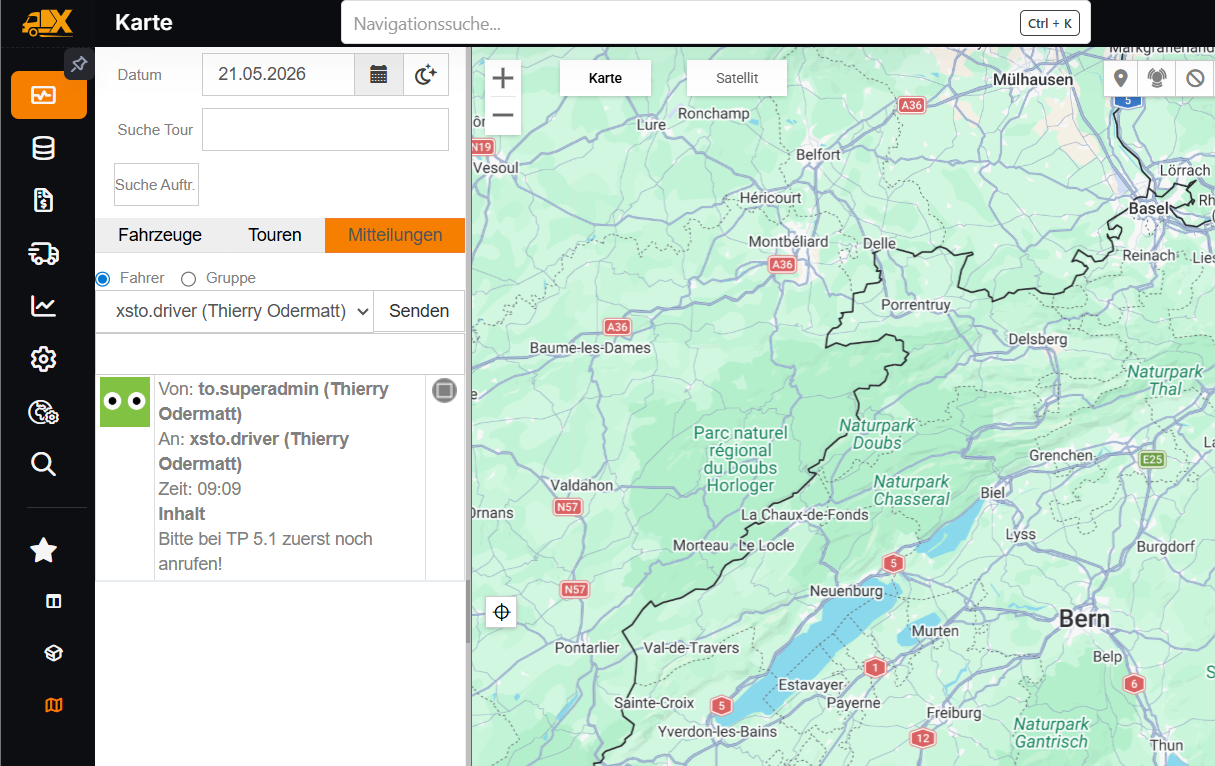
Messages in the header: send and receive messages to groups and individual users and mark them as read.
Via Messages, you communicate directly with drivers, groups and individual users. There is no separate tab for this in Monitoring: the speech bubble icon Messages is located in the header and opens the messages as a sidebar at the edge of the screen. A number on the icon shows the number of unread messages.
Sending a Message
- Click the Messages icon in the header.
- At the top of the sidebar, select the group the message is to be sent to. The group selection can be searched.
- Enter the message text. For a direct message to a single person, type
@and select the user from the list. All users of the current group who are not absent are offered, not only drivers. - Send the message with the Enter key or the send button of the input field.
Without an @ mention, the message goes to the selected group. It is quicker from Monitoring: the Message button in the tour detail panel and in the vehicle card opens the sidebar with the driver already mentioned as recipient. In the tour detail panel, the button only appears if a driver is assigned to the tour.
Users with the role Read only with messages (without any other authorised role) can only select the current group.
Message Overview
The Messages sidebar shows one message thread per selected group, including direct messages. The messages are separated by day and show the sender, time and avatar. Older messages are loaded when you scroll up. New messages appear without reloading the page. To reply directly to a person, click their @ name; the mention is then inserted into the input field again. Use Close to close the sidebar.
Unread messages are highlighted. The read status applies to the whole office: if a dispatcher reads a message, it counts as read for everyone.
- Text messages count as read as soon as the sidebar has been open and the browser window visible for 3 seconds.
- Voice messages only count as read once you have played them for 3 seconds or listened to them to the end.
The number on the Messages icon only counts group messages and direct messages to you, not your own messages.
Notifications
When a new message for the office arrives, a notification also appears, even if the sidebar is closed. It shows:
- From with the sender, and the time,
- the message text or, for voice messages, an audio player,
- a button for marking the message as read (You have read this message.),
- Close.
The notification closes automatically after 10 seconds. If you click on the notification, it stays open. No notification appears for your own messages or for direct messages from colleagues to drivers.