

Shipment Review
Mark shipments as reviewed in Monitoring: individual transport points or the whole tour.
What is the Shipment Review?
With the shipment review, the dispatcher confirms in Monitoring that they have checked the executed shipments. You can mark individual transport points or all shipments of a tour at once as reviewed.
Prerequisites
- The Shipment review module is active for your group.
- Your user role allows the shipment review (see Permissions).
Opening the Shipment Review
The Mark as reviewed action is available in two places:
- In the details of a transport point: Select the transport point on the map or in the tour details.
- In the tour details: The action applies to all shipments of the tour.
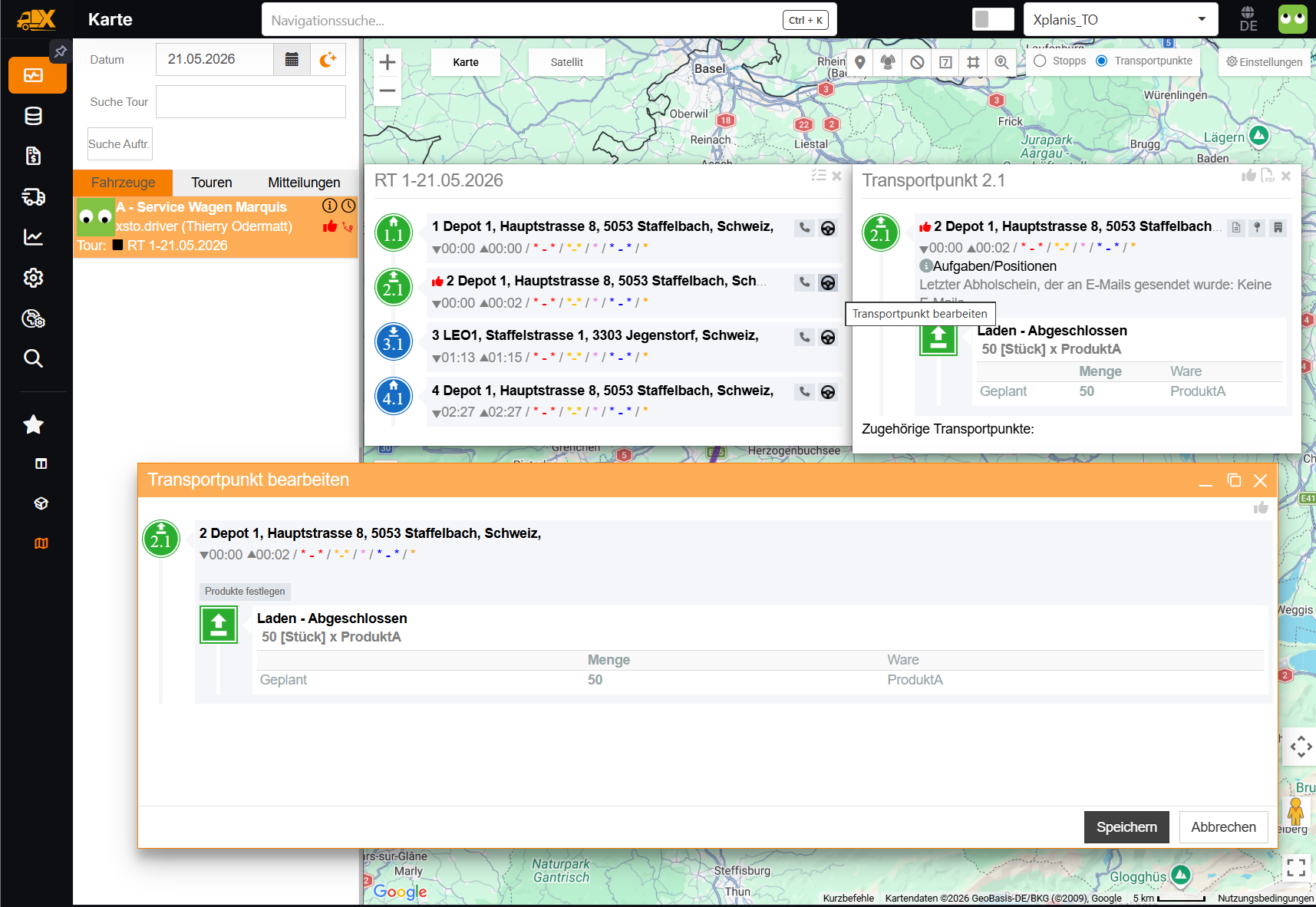
Review Contents
Reviewing a Transport Point
In the transport point details, the Mark as reviewed action shows a thumbs-up icon. If the transport point has already been reviewed, Review completed appears in green instead.
- One shipment: After a confirmation, the shipment is marked as reviewed. The corresponding counterpart point (pickup or dropoff) is then also considered reviewed.
- Several shipments: A dialog opens in which you select the shipments to be reviewed.
- Already reviewed: The message Shipment is already reviewed. appears.
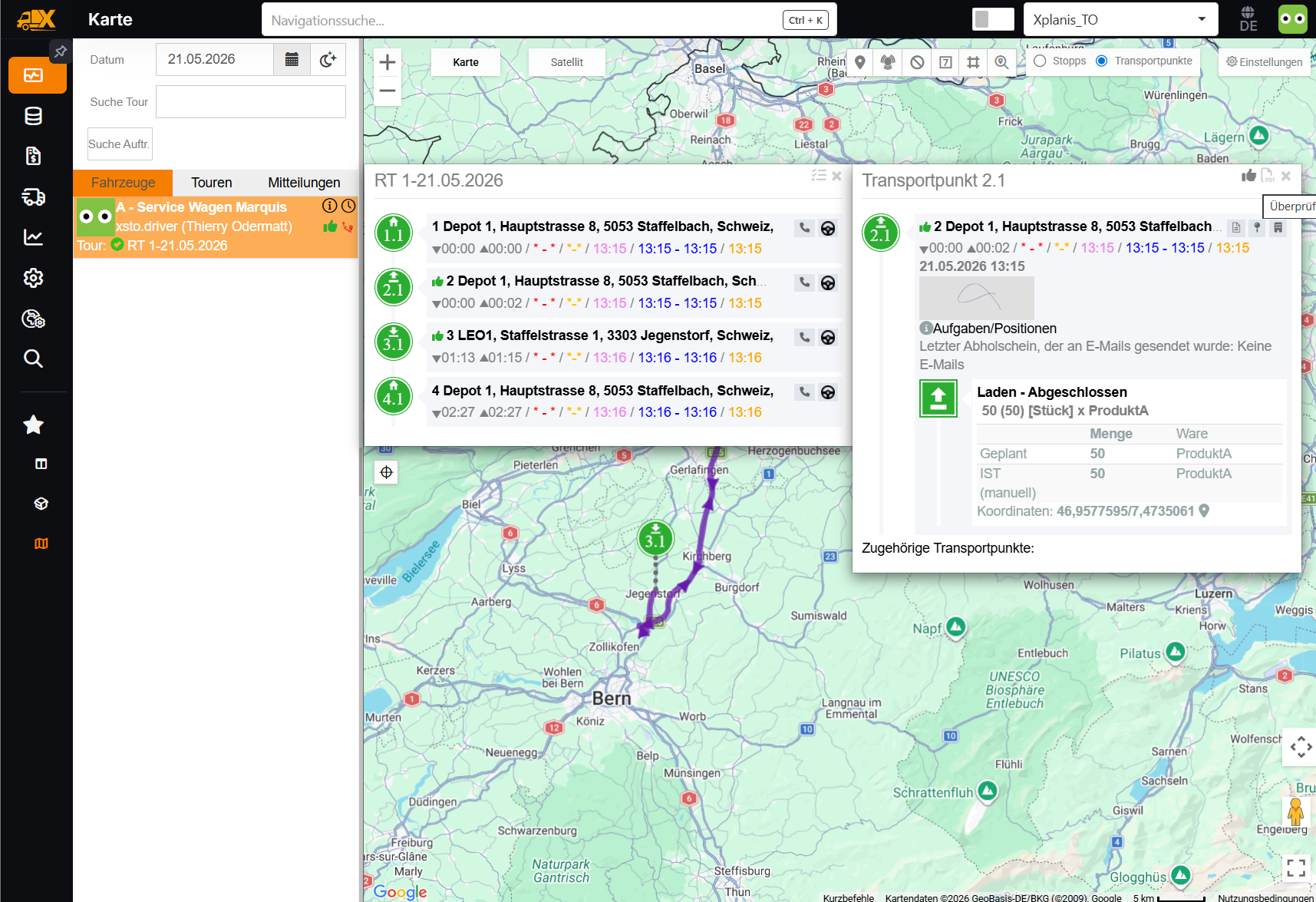
Reviewing the Whole Tour
In the tour details, the Mark as reviewed button shows the status of the tour with a coloured thumbs-up icon:
| Colour | Meaning | Tooltip |
|---|---|---|
| Green | All shipments are reviewed (Review completed) | All shipments are reviewed. |
| Yellow | Some of the shipments are reviewed | Shipments are not yet reviewed. |
| Neutral | No shipment is reviewed yet | Shipments are not yet reviewed. |
A click opens the prompt Are you sure you want to review all (…)x from tour … with the number of shipments and the tour name. After confirmation, all shipments of the tour are marked as reviewed. If all shipments are already reviewed, the message All shipments are reviewed. appears.
Permissions
| Role | Shipment review |
|---|---|
| Superadmin, Admin, Dispatcher | Can mark shipments as reviewed |
| Read only rights, Read only with messages, Clerk | Only see the review status, without being able to change it |
| Read only rights without vehicles, Clerk without vehicle | Do not see the shipment review |
For roles with read-only access, the button in the tour details remains visible with its icon, colour and tooltip, but is greyed out and cannot be clicked. In the details of a transport point, the action remains visible in its normal colour; a click has no effect.
If a user has several roles, the following applies: a role with read-only access makes the shipment review read-only, and a role "without vehicles" hides it. For details on the roles, see Roles & User Management.
Effect on Webhooks
If the Shipment review module is active, the shipment review affects the sending of webhooks:
- Tour webhooks: As long as the execution of the tour has not yet started (e.g. planned, released or in revision), tour webhooks are sent as usual. For all other tour statuses, a tour webhook is only sent if all shipments of the tour are reviewed. As soon as the last shipments of the tour are reviewed, a tour webhook with the current tour status is sent, provided a webhook is configured for this status.
- Shipment webhooks: On a status change, only shipments that have already been reviewed are transmitted. For unreviewed shipments, the status change is not delivered later; instead, a shipment webhook with the current status is sent when they are reviewed, provided a webhook is configured for this status.