Two-Factor Authentication (2FA)
Enable and configure 2FA via e-mail or authenticator app
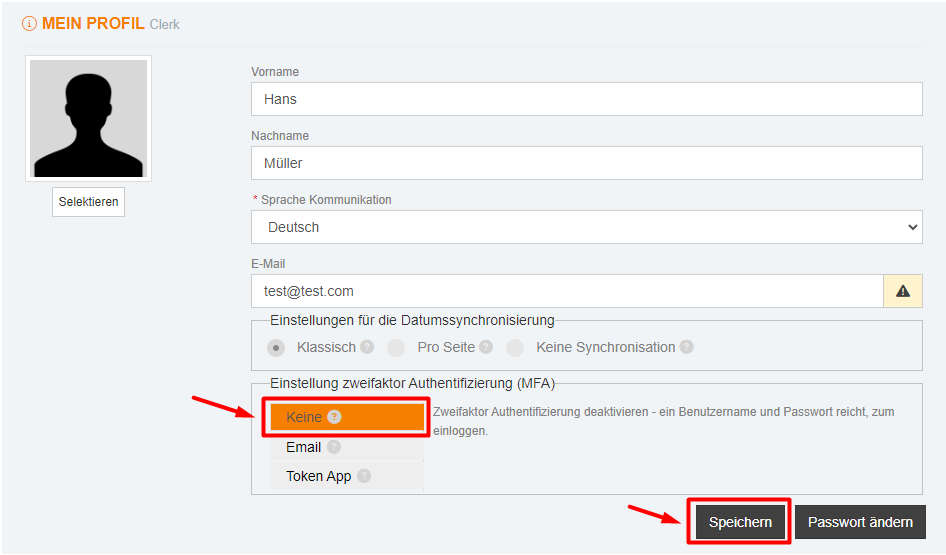
X4Fleet supports two-factor authentication (2FA) for enhanced account security. Configuration is done under My Profile or, for administrators, via Users.
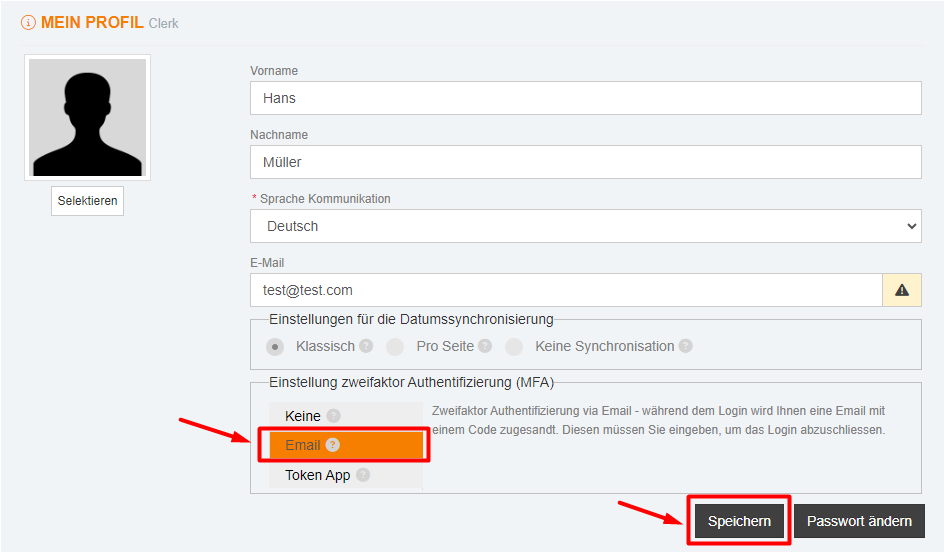
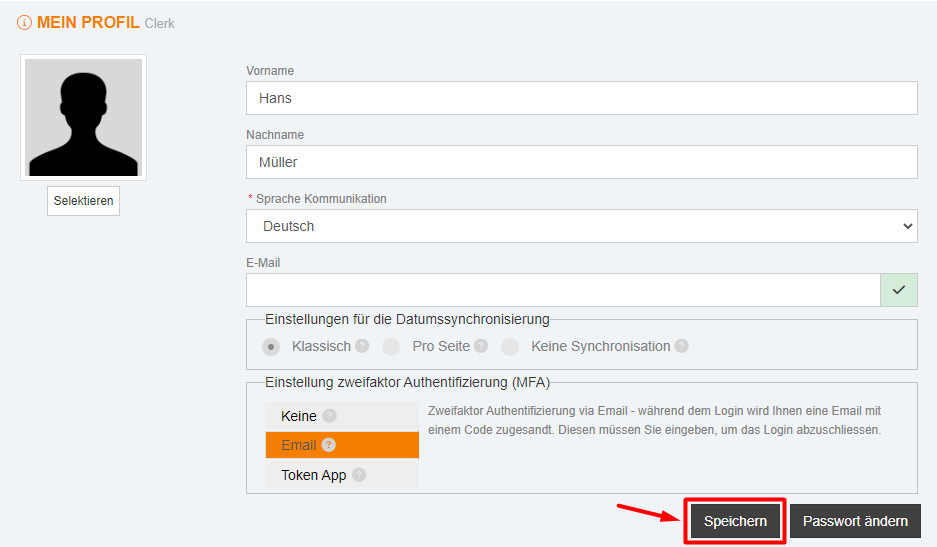
Option 1 – 2FA via E-Mail
Select Two-factor authentication via e-mail address and click Save.
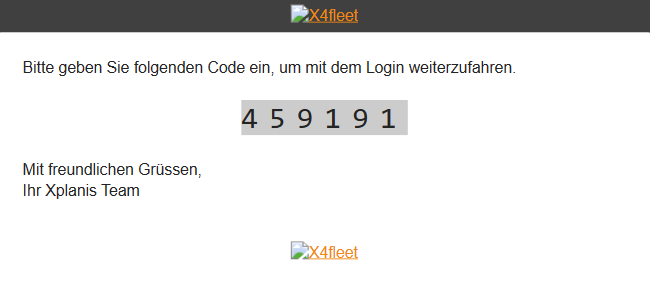
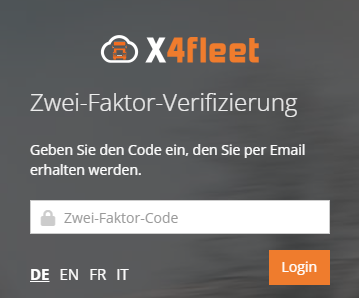
At the next login, you will need to enter a 6-digit code sent to your e-mail address.
Option 2 – 2FA via Authenticator App
Step 1: Select Token App as the 2FA method and click Save. The message "Two-factor authentication will be set up the next time you log in." appears. No further step is required in My Profile.
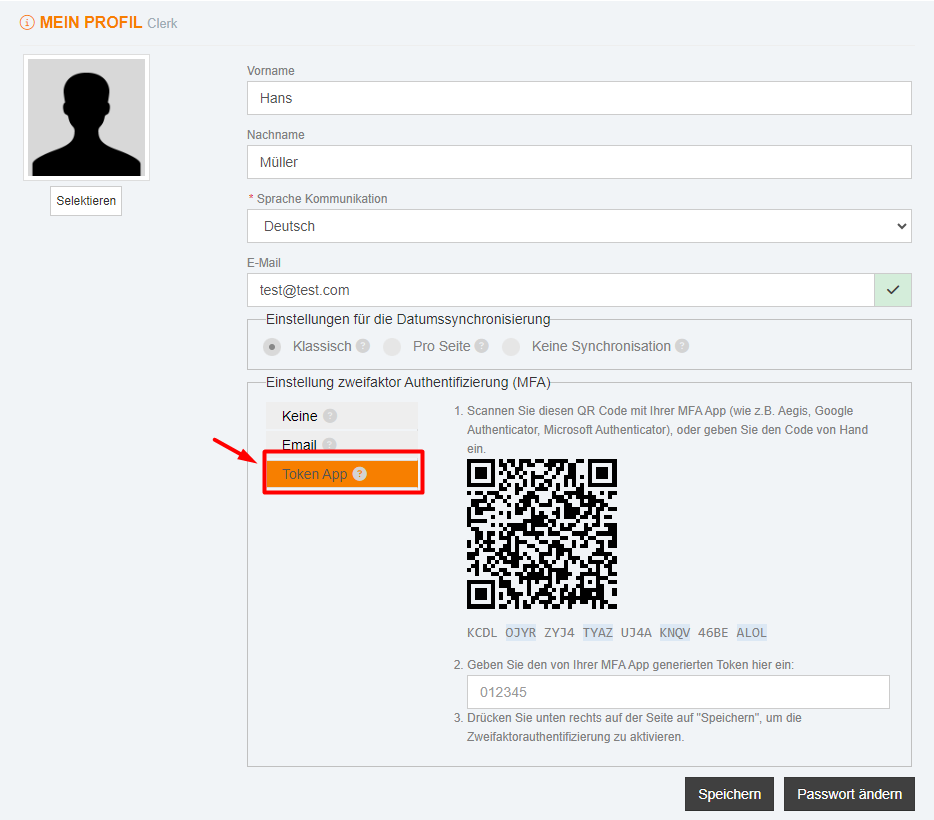
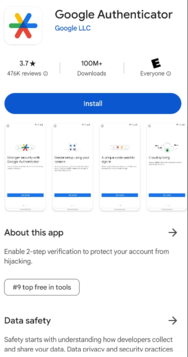
Step 2: Install an authenticator app on your mobile device, for example Google Authenticator, Microsoft Authenticator or another TOTP app. The example uses Google Authenticator.
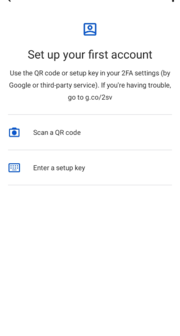
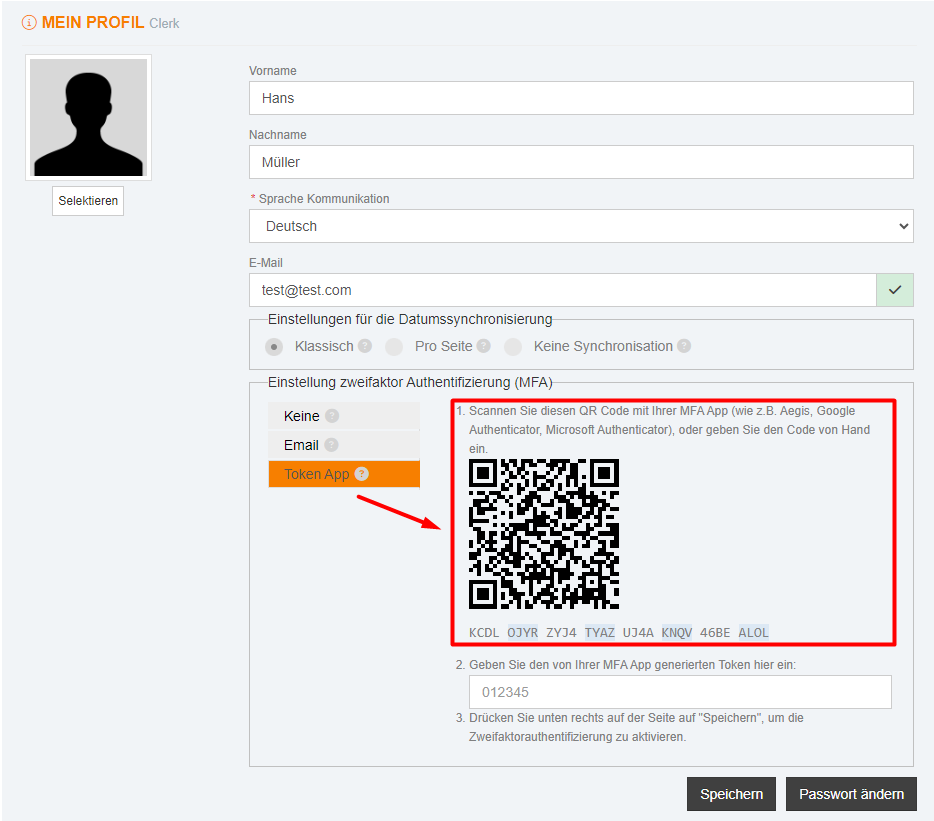
Step 3: Sign in to X4Fleet the next time. After the username and password, the page Set up your authenticator appears. Add your X4Fleet account in the app – either by:
- Scanning the QR code, or
- Manually entering the displayed setup key (you can copy it with the copy button).
In the app, the account appears under "X4fleet" with your username.
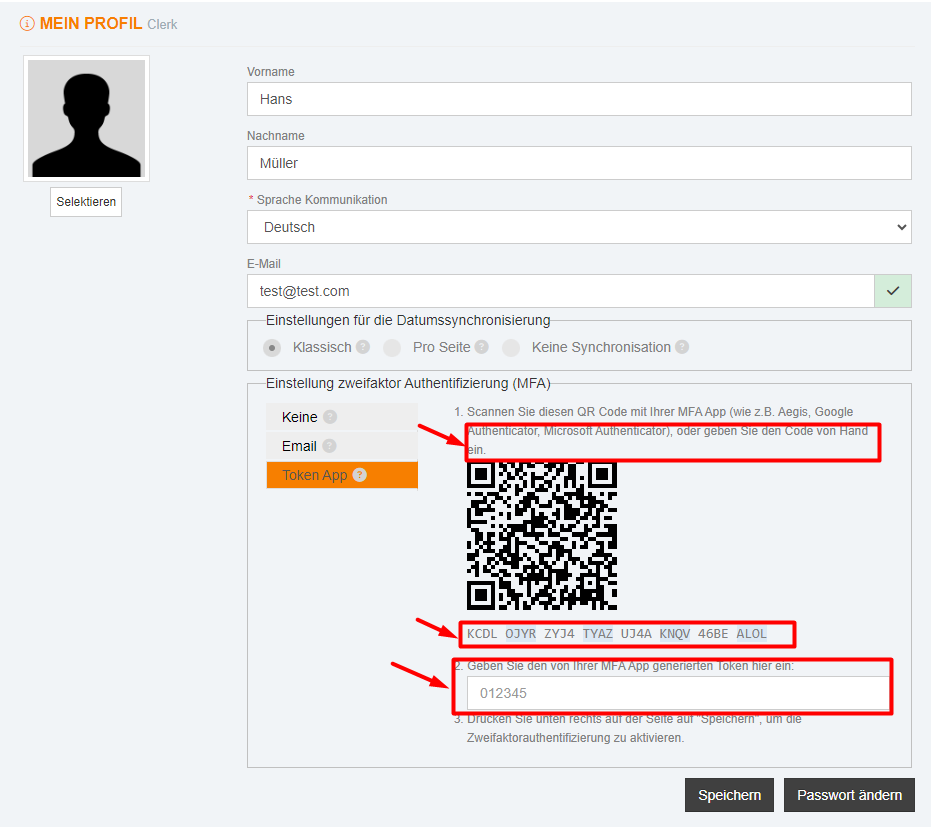
Step 4: Enter the 6-digit code shown by the app and click Verify and enable. The confirmation Two-factor is on appears; complete the setup with Done. From now on, you enter the code from your authenticator app when signing in.
Option 3 – Disable 2FA
Select Disable two-factor authentication and click Save to deactivate this functionality.