

Forgot Password
Reset your password when you have forgotten your login – enter your username, request a reset link by e-mail and set a new password.
Use the Forgot password function to request a link for resetting your password when you no longer know your access credentials. To do so, you enter your username; if an e-mail address is stored for your account, you then receive an e-mail containing a secure reset link.
1. Opening the function
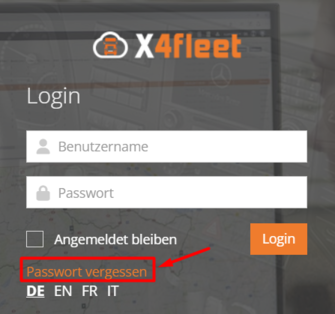
The function is accessible from the login page. Below the login form, click Forgot password. You are forwarded to the form for requesting the reset link.
2. Entering the username
In the Username field, enter the account name you normally use to log in to X4Fleet. The system uses this name to identify your account. You do not need to enter an e-mail address.
- This field is mandatory. If it is left empty, the notice “Please enter your username” appears and the form cannot be submitted.
- For security reasons, the form does not show whether an account exists for the entered username. After submitting, the same confirmation page always appears.
3. Requesting the reset link
Click Send reset link to send the request.

If an e-mail address is stored for your account, X4Fleet generates a secure reset link and sends it to this address. If no e-mail address is stored, no e-mail is sent.

4. Confirmation of dispatch
After submitting, a confirmation page appears stating that a password reset link has been sent to you if your account exists in the system. This page is for information only and contains no further input options.
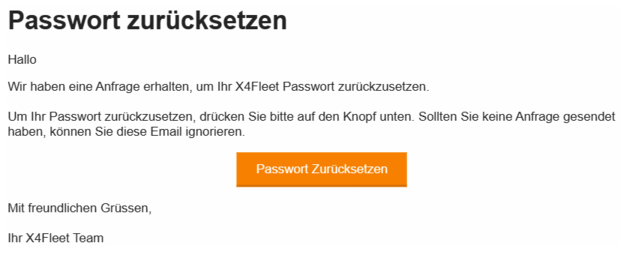
Next, open your e-mail inbox and, in the message you received, click the Reset Password button to set a new password.
5. Setting a new password
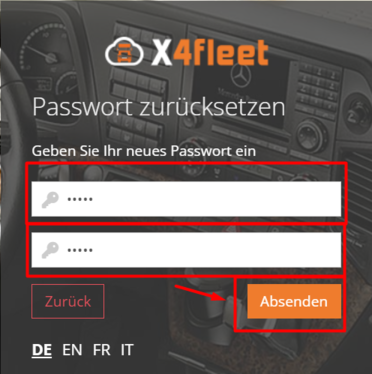
The link in the e-mail opens the Change your password page. Fill in the following fields there:
| Field | Description |
|---|---|
| Username | Your username – enter it here again |
| New password | The new password you want to use |
| Confirm new password | Repeat the new password as a check |
Then click Update password. With Cancel, you leave the page without changing the password.
The new password must meet the following requirements:
- at least 8 characters
- at least one uppercase letter
- at least one lowercase letter
- at least one digit
- at least one special character (a character that is neither a letter nor a digit)
If the password does not meet one of these requirements, a notice about the password requirements appears below the field.
After a successful change, the message “Your password has been reset” appears. The link Please click here to log in takes you to the login, where you log in with the new password. Any pending request to change your password no longer applies.
6. Cancelling and returning to the login
If you do not wish to request a reset link, click Back. You return to the login page without any further action.
7. Validation and error messages
When you submit the forms, your entries are checked. The following notices may appear:
| Situation | Feedback |
|---|---|
| Username missing (Forgot password? form) | “Please enter your username” on the Username field |
| New password missing | “The new password is required” |
| Password confirmation missing | “The field "Confirm Password" is required” |
| New password does not meet the requirements | Notice about the password requirements on the New password field |
| Password and confirmation do not match | “The password and confirmation password do not match.” |
| Link has expired or has already been used | “The link for reset password is expired.” – request a new link |
Server-side errors are shown directly in the form, highlighted in colour. Correct your entries and submit the form again.
Notes
- You only receive the reset link if the username belongs to an existing account and an e-mail address is stored for this account.
- Check the username on the Change your password page carefully: an unknown username is not reported as an error there, but the password is then not changed.
- If you do not receive an e-mail, first check your spam folder. If problems persist, contact your system administration or support.
- Further information on logging in can be found under Log in.