

Manage Users
Guide to adding, editing and removing users in X4Fleet
Add a User
As an administrator, you are responsible for adding user groups and individual users to the system.
A user can be created with a single role or a combination of roles. The users' duties must not conflict with one another.
Prerequisites
Before creating an account, the user data must be recorded. This information includes:
- Username *
- Password *
- Role *
- First name
- Last name
- Company
- User reference ID
Mandatory fields are marked with an asterisk (*).
Available Roles (for Administrators)
Administrators can create all available user roles except Superadmin (or non-activated modules). You can find the list of roles here.
Edit a User
To edit the user, please make sure that you have the required administration rights.
- Open the settings menu.
- Select the "Users" tab.
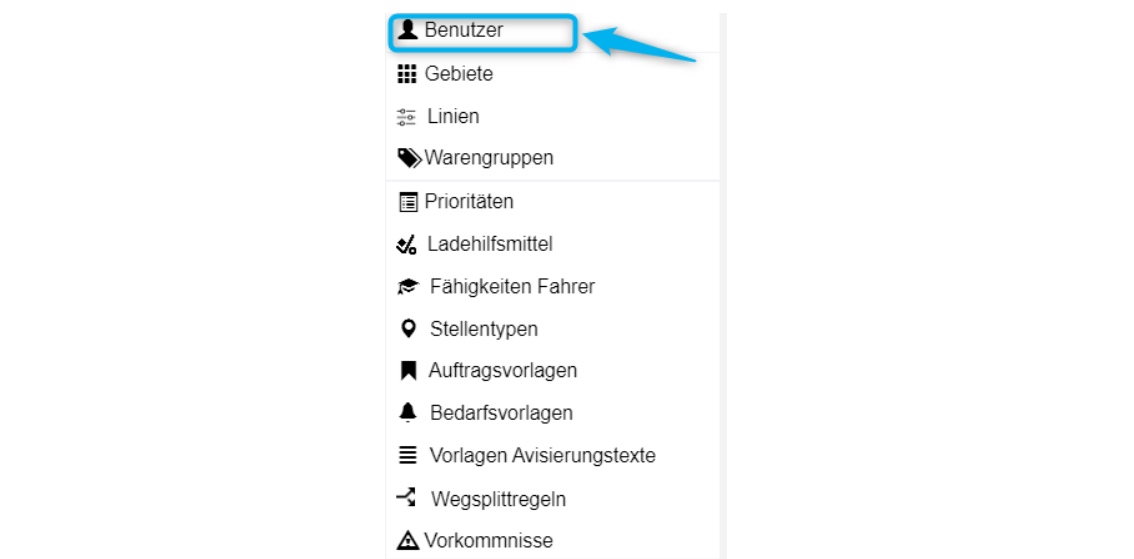
- Select the desired user from the list of users.
- Click the "Edit" button.
- Select the tab to be changed, make the required changes and press the "Save" button.
User Form – Tabs
| Tab | Fields |
|---|---|
| General | Group, RefID, photo, company, first/last name, username, password, e-mail, vehicle, valid from/until, login allowed, own tours only |
| Skills | Driver skills (ADR/SDR, license categories etc.) |
| Contact | User's contact details |
| Exception days | Absences (vacation, illness etc.) |
| Availability | Weekly availability for tour planning |
| Remarks | Free text |
| Certificates | Upload/download documents |
| Times | Vacation balance, flextime balance, part-time level |
General Tab
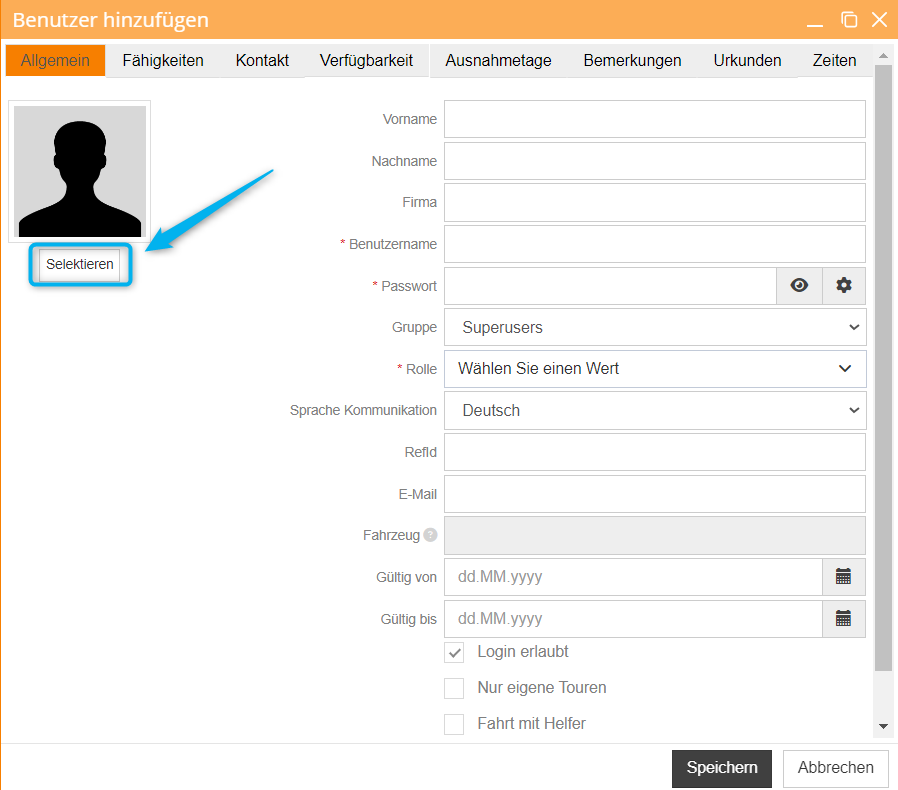
- Add profile picture (JPEG, JPG, GIF or PNG)
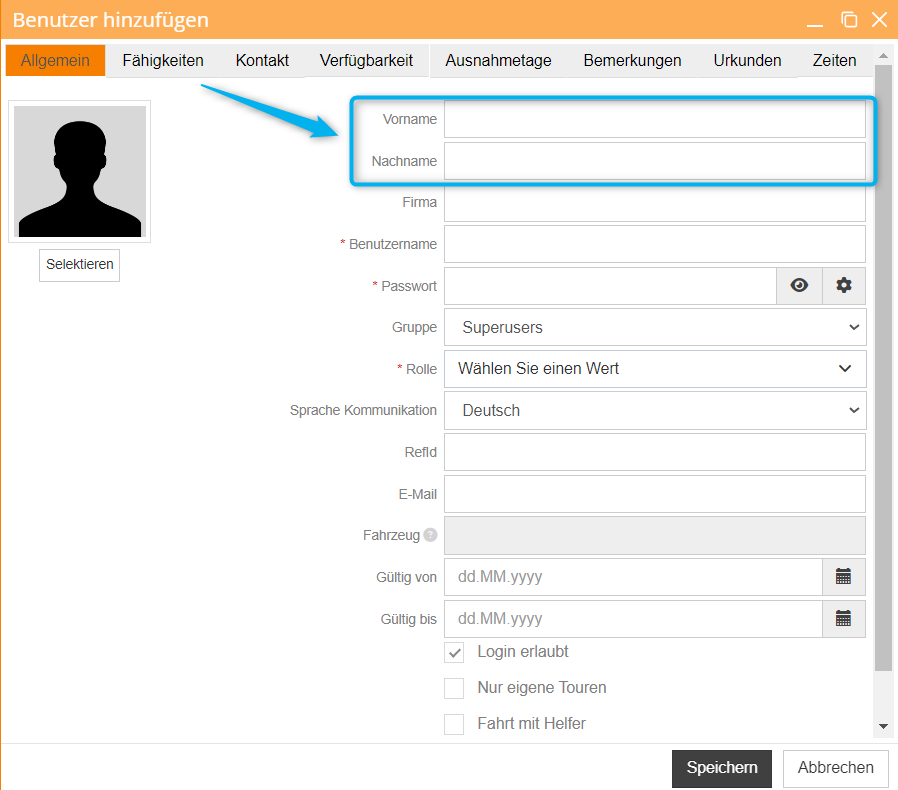
- First and last name
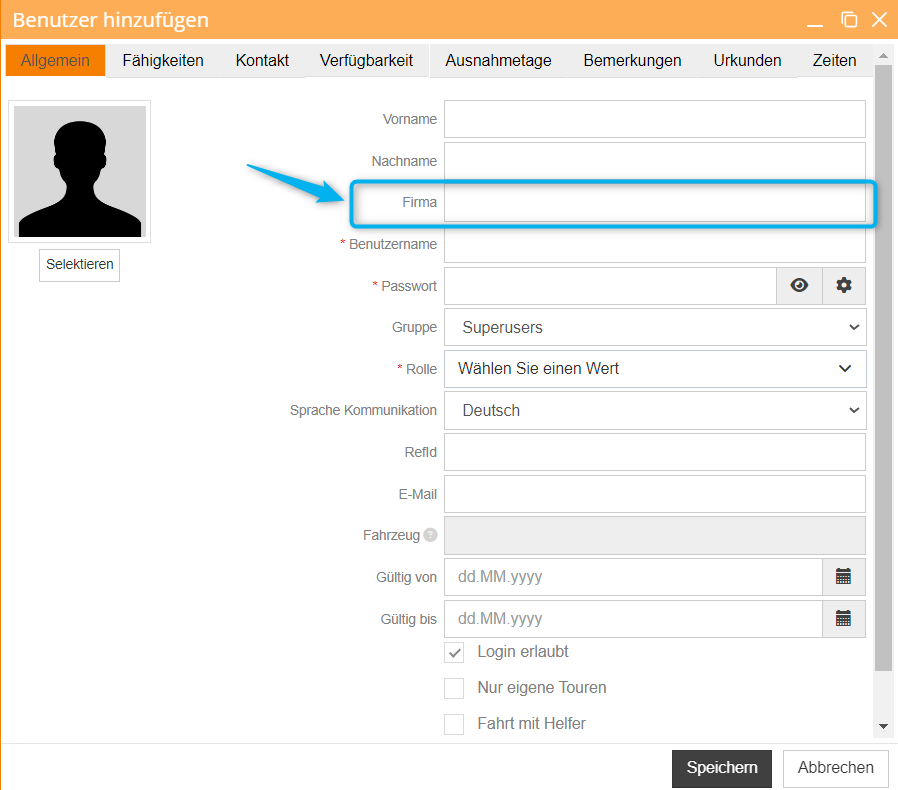
- Company name
- Username and password
- The login must be unique within the X4fleet system.
- The login may be up to 30 characters long.
- The password must be 4-20 characters long.
- Avoid using passwords that can be easily compromised, or reusing passwords from other accounts!
- The password entered here is a temporary password. At the first sign-in, the new user must replace it with their own password on the Set your password page and confirm with Set password. The new password must be at least 8 characters long and contain at least one lowercase and one uppercase letter, one digit and one special character. See Change Password.
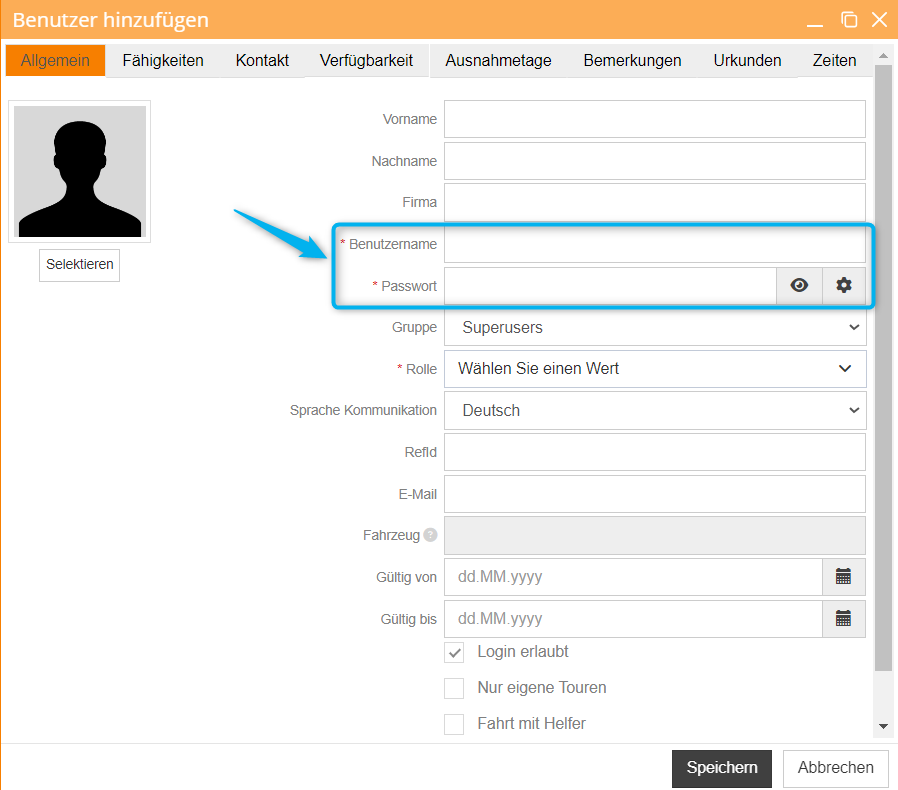
- Generate password automatically

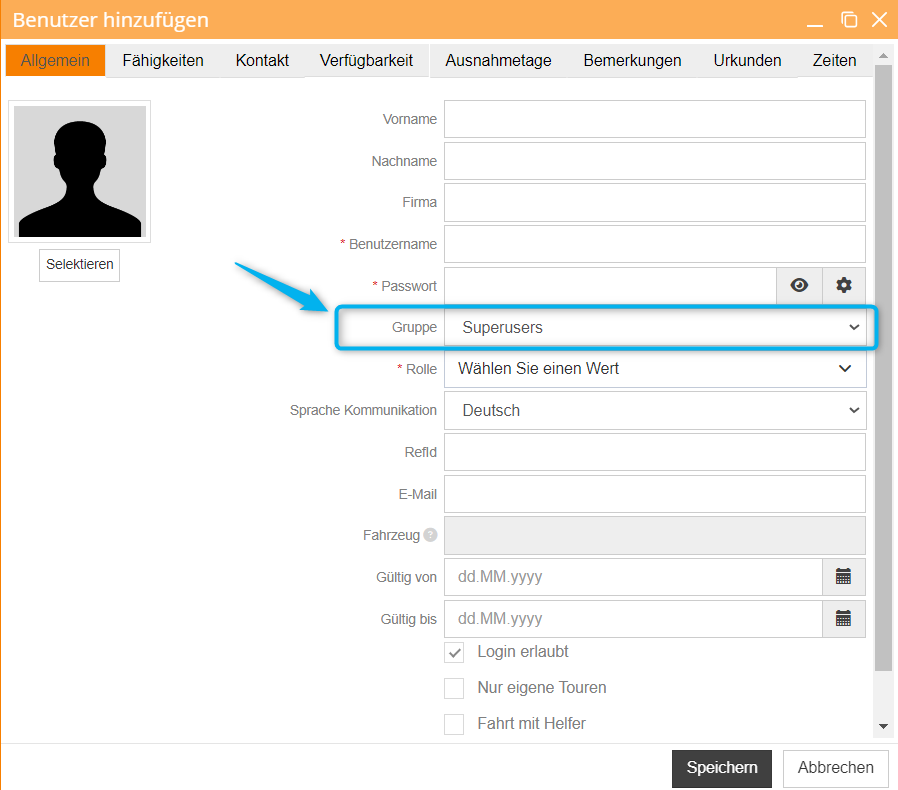
- Access level / group
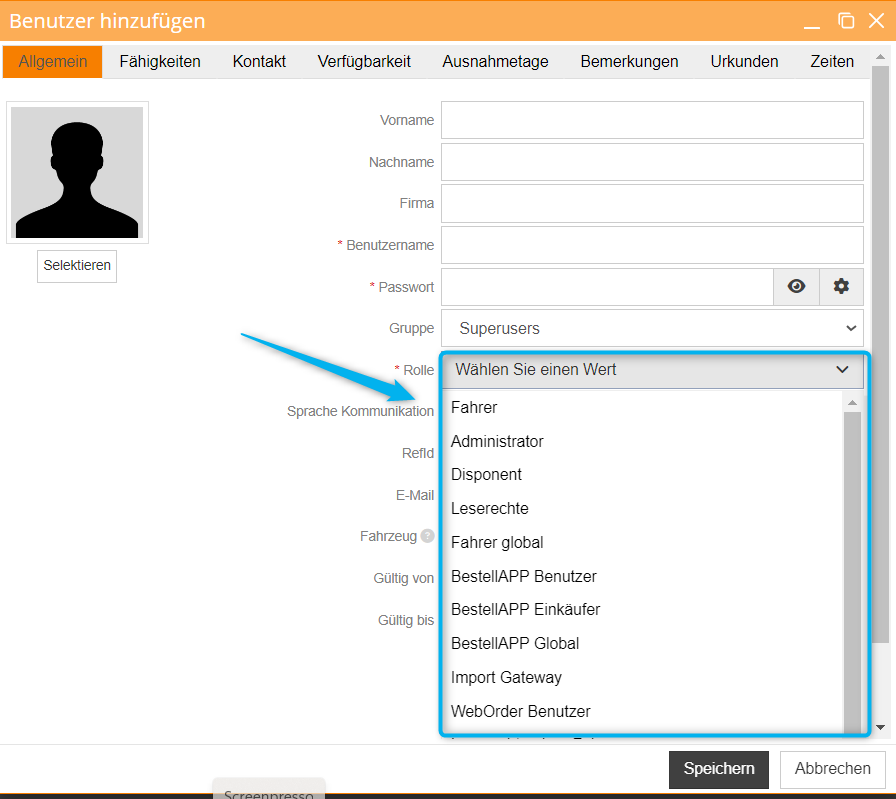
- User role
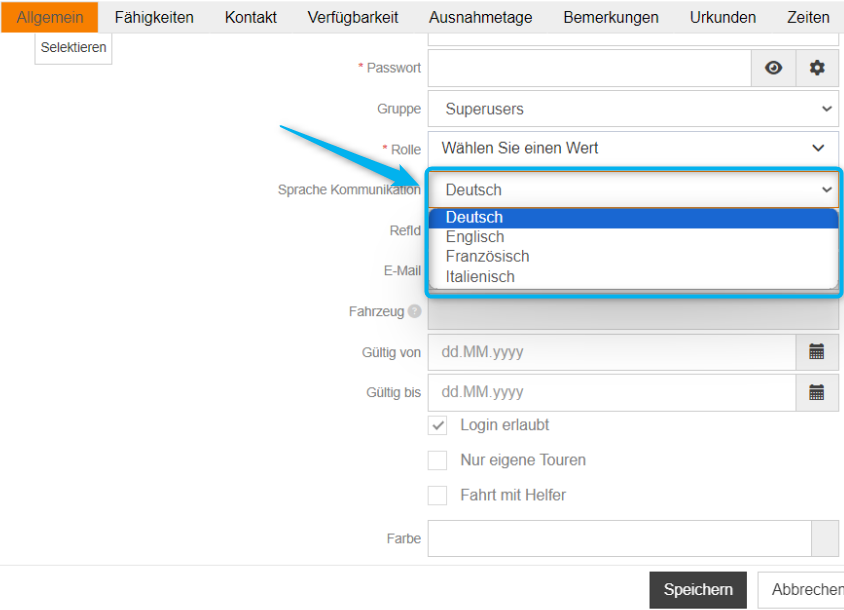
- Primary language
- Reference number
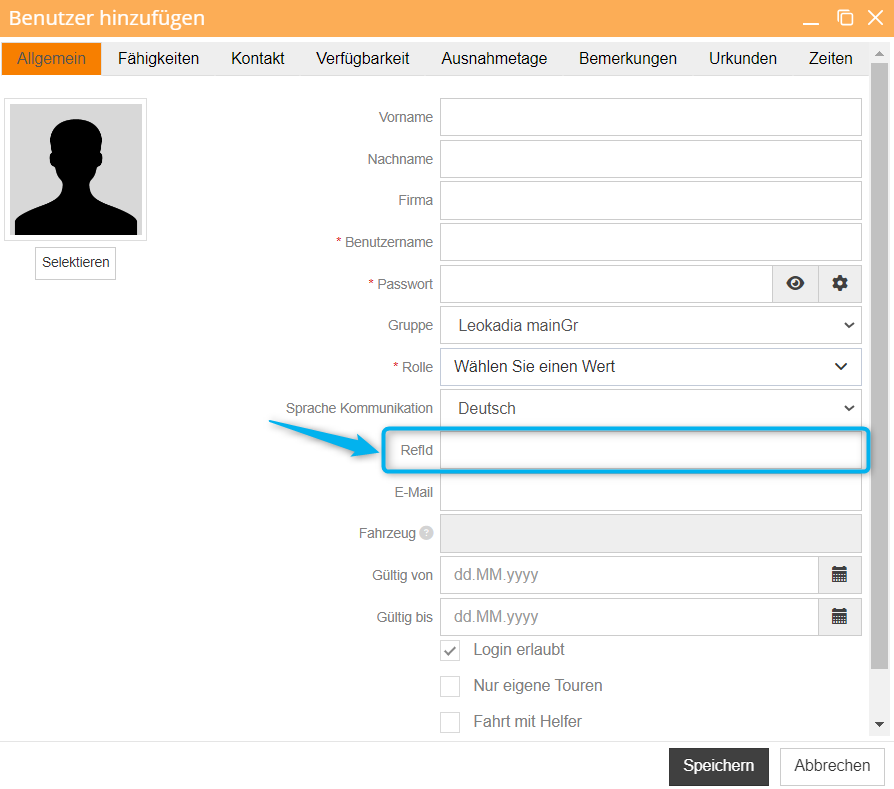
- E-mail address
- The e-mail address must be verified by the end user of the account in the My Profile area.
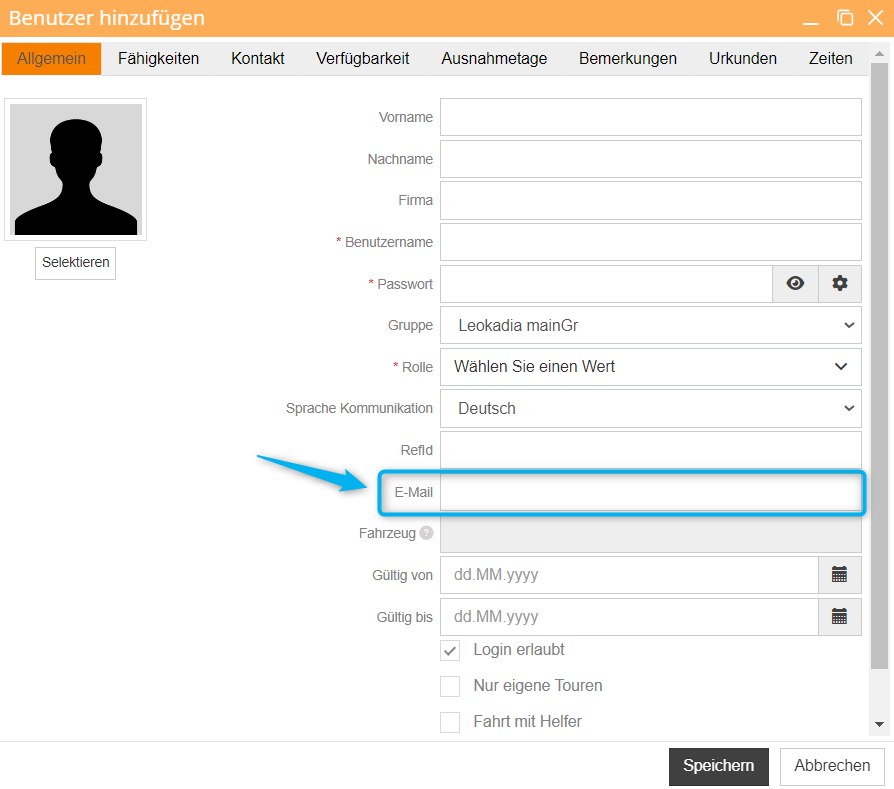
- The e-mail address must be verified by the end user of the account in the My Profile area.
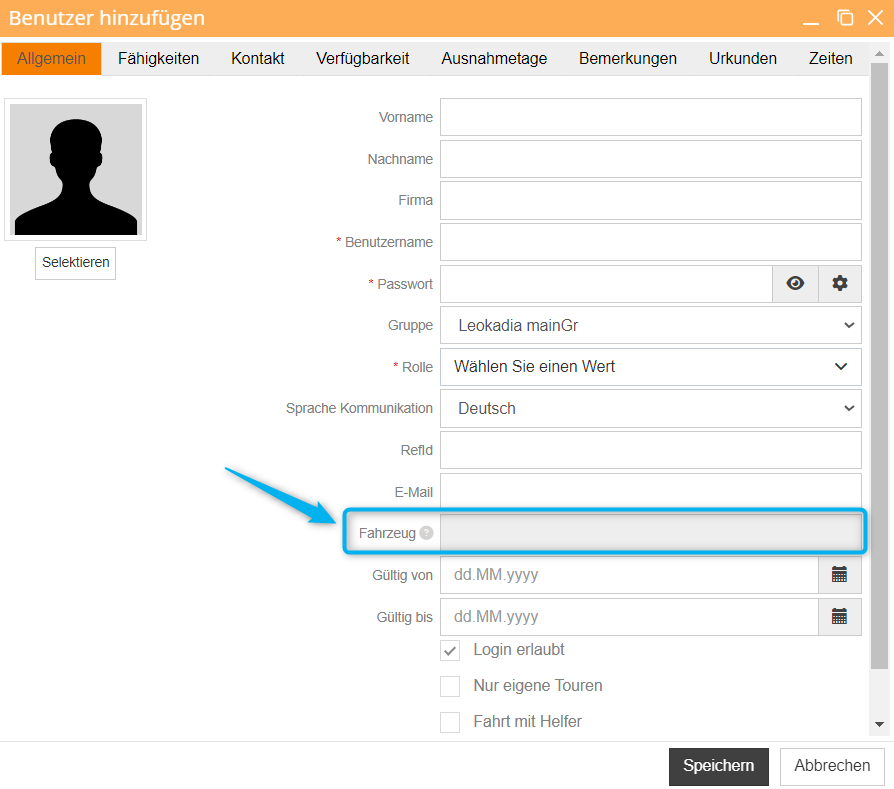
- The vehicle details are only relevant for the driver role. They must be pre-filled by the user on the Vehicle tab.
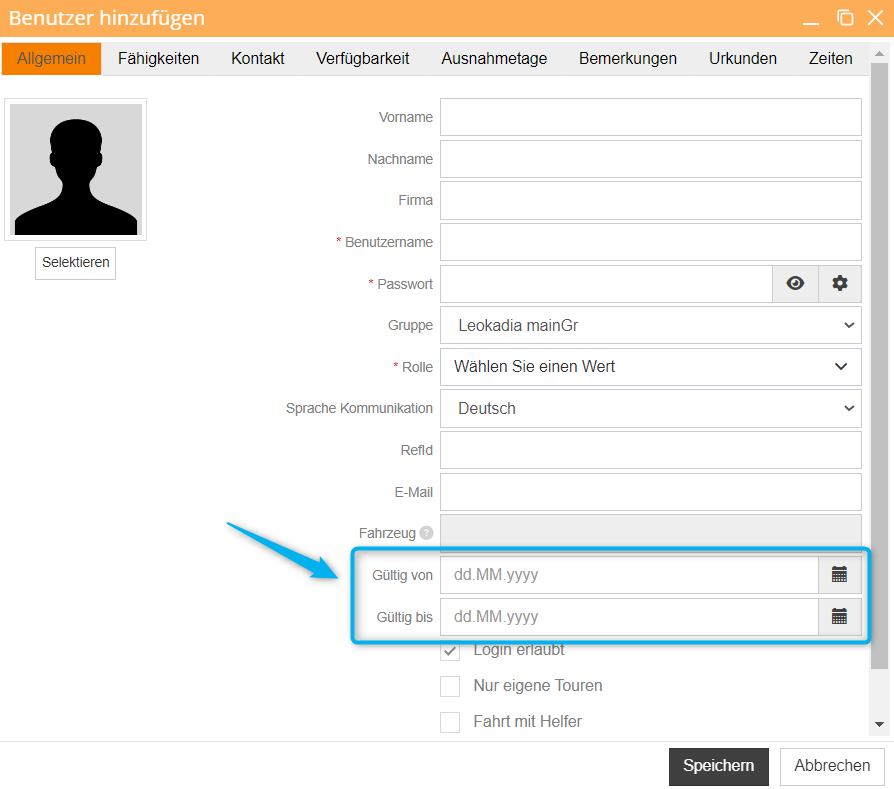
- Validity period of the user account
- To allow the user to log in, check the "Login allowed" box.
- To allow the user to manage only their own tours, check the corresponding box.
- To enable driving ONLY with the assistant, place a check mark in the corresponding field. See image 18.
Remove a User
To remove a user from the system, you must have the required administrator rights.
- Open the settings menu.
- Select the "Users" tab.
- Select the desired user from the list.
- Press the "Remove" button.
- Confirm the deletion by clicking the "Remove" button again.
The username and e-mail address of a deleted user are released immediately. You can therefore create a new user with the same username or the same e-mail address right away.