

Sidebar
Filter panel in Monitoring: date selection, overnight tours, search and tab overview.
The sidebar is the control and filter panel of the monitoring view. It determines which data is displayed on the map and in the tabs.
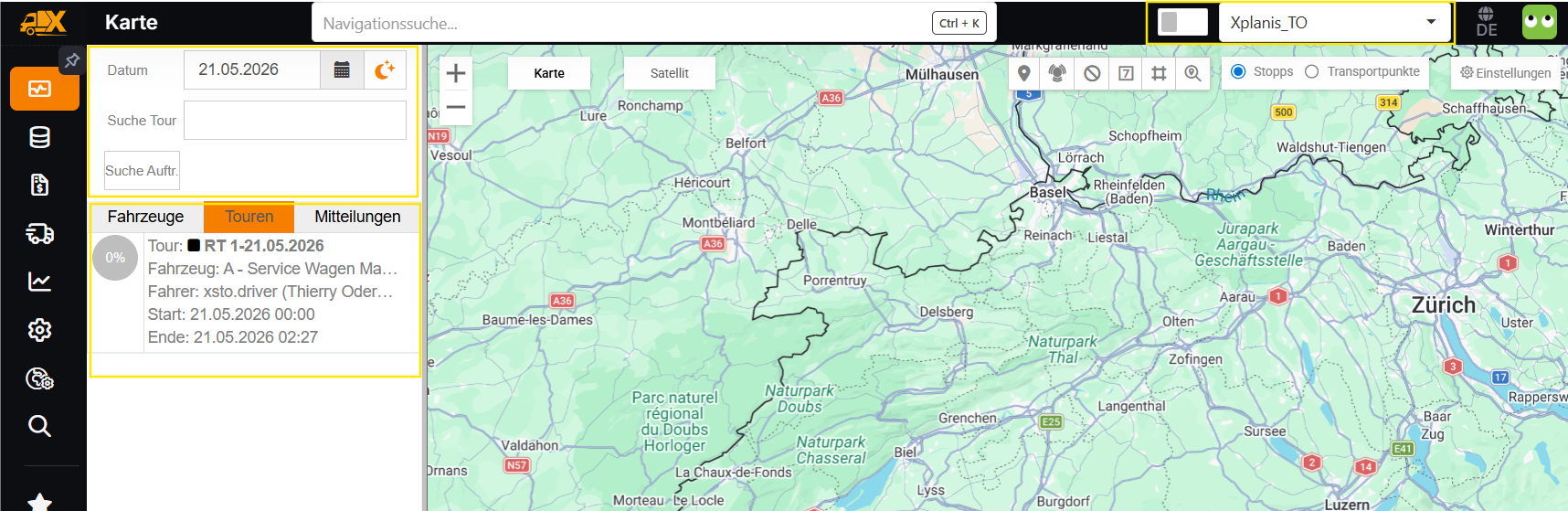
Date Selection
The date selector defines for which day tours and vehicles are displayed. The current date is selected by default. Changing the date reloads all tabs and the map.
Overnight Tours
You switch overnight tours on or off with the moon icon in the date field (hint Include overnight tours). If the icon is filled, tours that were started the previous day and are still active are also displayed; if only its outline is visible, the option is switched off. The initial state depends on your user setting. For operations with night-time transports, it is recommended to keep this option enabled.
Tour Search
The Tour search field narrows down the lists in the Vehicles tab and in the Tours tab. The search starts as soon as you press the Enter key. Use the X in the search field to reset the search.
The search covers the following details:
- Tour name in all language versions (part of the name is sufficient)
- Tour ID and tour reference (exact match)
- Vehicle name or license plate (part is sufficient)
- First name, last name or user name of the driver (part is sufficient)
Separate several search terms with a semicolon (;). All tours that match at least one of the terms are then displayed. The matches are not highlighted on the map; the map continues to show only the selected tour.
Order Search
The Order Search button opens the Search order dialog. Use it to find the tours that contain specific shipments or orders.
In the dialog, you first define the period:
- Today (default)
- Last week – today and the six days before
- Custom – a freely selectable date range, with the quick selection Today, This week, Next week, This month, Next month, This year and Next year (weeks start on Monday)
- Unlimited – without any time restriction
You then enter the search criteria. The following are available: Order number, Client, location, external order reference, Ext. Shipment Reference, Shipment Id (digits only), Truckload number and Barcode. In addition to Apply filter, the dialog offers the buttons Clear filter and Cancel.
After Apply filter:
- If nothing is found, the message No results found. Try a different keyword. appears and the search is not applied.
- If there are matches, the dialog closes. The lists then only show the tours with the shipments found, regardless of the day in the date selection.
- If exactly one tour is found, it opens automatically. The first transport point of the tour that contains a shipment found is selected and focused. If several tours are found, nothing is preselected.
While the order search is active, the button is highlighted and the search criteria are shown below it (the complete list in the tooltip). Use the X (Erase filter) to cancel the search. The last applied search is saved per user and applied again the next time you open Monitoring. While the order search is active, the data is not automatically updated in the background.
Global Filter
The sidebar does not contain a global filter. Which group is displayed in Monitoring is defined in the header of the application with the group switcher. This is also where you will find the switch for restricting the display to the current group.
Tabs
Below the filter options there are two tabs with the detail data:
- Vehicles – one row per tour with an assigned vehicle, with driver and tour status
- Tours – List of all tours with status
You reach Messages via the header of the application. While the tours are being reloaded, a loading indicator covers the tabs.
Sidebar Width
At the bottom of the sidebar there is a discreetly displayed button that resets the sidebar to its default width.